


What troubleshooting steps are recommended if BookNook is not working as expected?
A hard refresh will clear your browser cache for a specific page, which will then force it to load to the most recent version of that specific page. This can be a helpful step to take if a normal refresh is not helping when encountering an error screen within BookNook.
1. Perform a Hard Refresh:
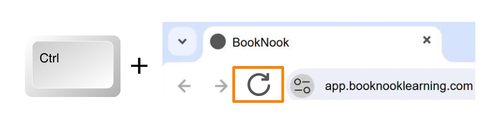
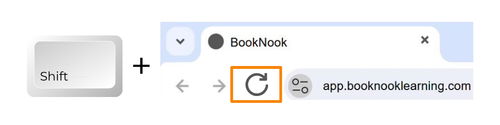
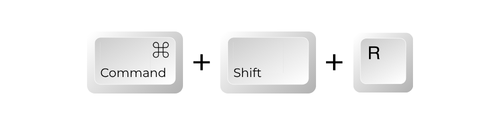
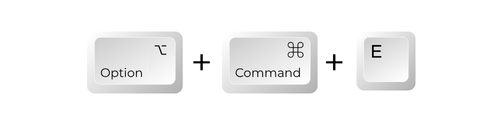
Use shortcut keys to perform a hard refresh. Which shortcut you use depends on your browser and device type.
Browser: Chrome Device: Windows/Chromebook – 2 options
| Hold down the Ctrl key and click the Reload button in the browser window | Hold down the Ctrl key and press F5 |
 |  |
Browser: Chrome Device: Mac – 2 options
| Hold down the Shift key and click the Reload button in the browser window | Hold down the Command, Shift and ‘R’ keys |
 |  |
Browser: Safari Device: Mac – 1 option
| Hold down the option and command key then press the ‘E’ key |
 |
2. Log Out of BookNook: After performing a hard refresh, visit: http://app.booknooklearning.com/logout
If performing a hard refresh on your device does not help resolve the error you are receiving, please reach out to our Customer Care team so they can continue investigating the issue.