

What should I do if I forgot or need to reset my staff or administrator password?
To Reset a password:
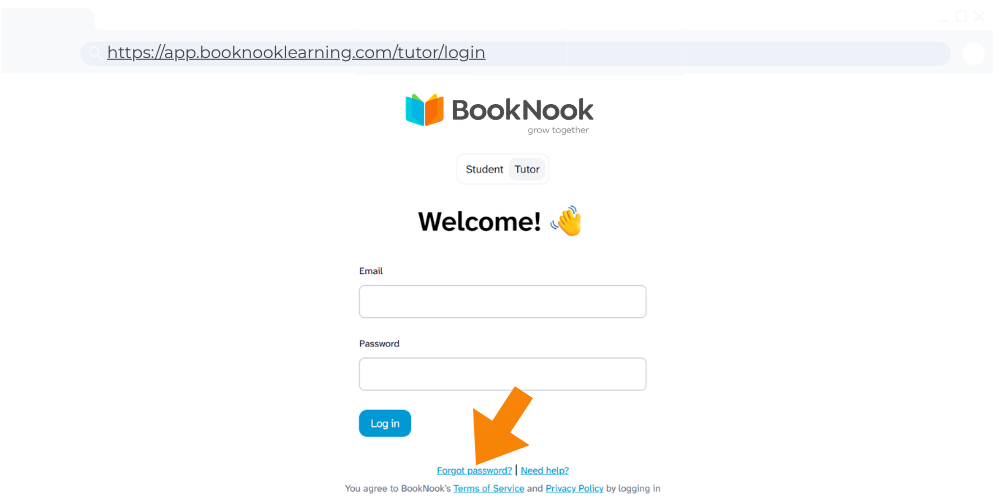
1. Visit the Educator Login Page https://app.booknooklearning.com/tutor/login and select “Forgot password?” at the bottom.
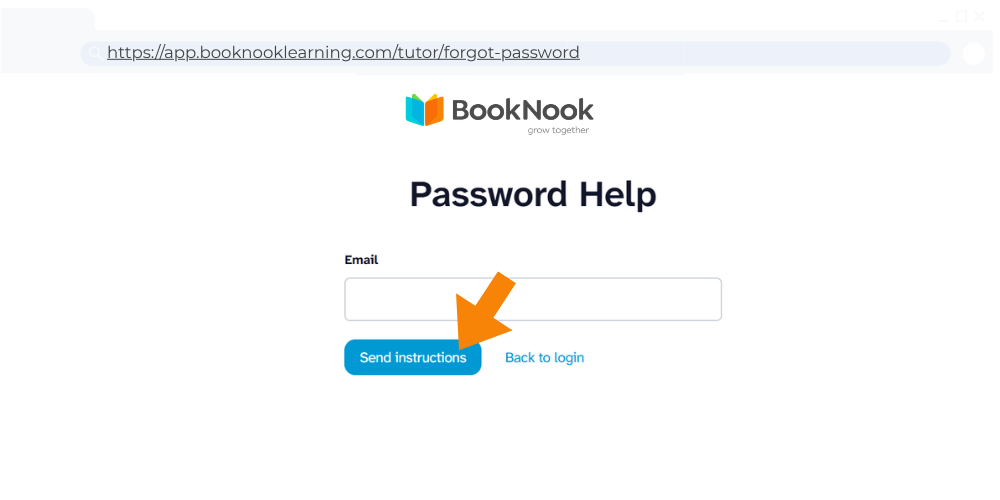
2. Enter the email associated with your BookNook account and select “Send Instructions.”
3. Check your inbox for an automated email from donotreply@booknook.com containing the instructions and a link to reset your password.
To a Update a password when logged into the BookNook site:
Click on your name in the top right corner. To update your password, you must first input your current password, then enter your new password twice. Click “Change Password”.
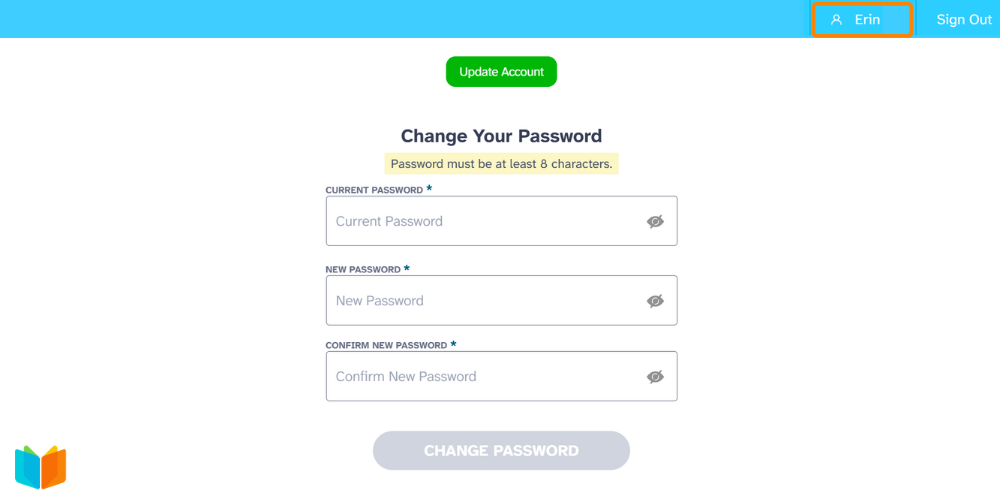
If the “Change Password” does not turn green, check that you have entered the same password twice.