

How do I start a Reading session?
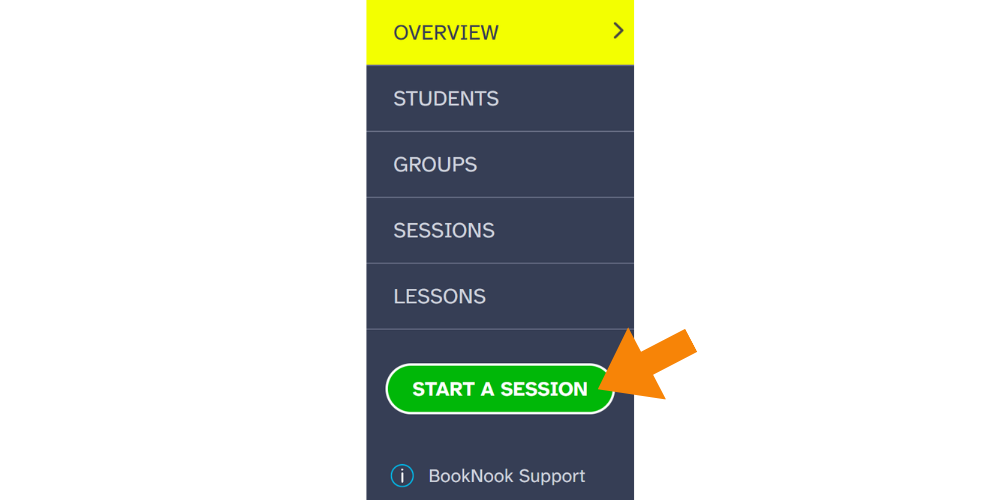
Once students have signed in, sign in to your own BookNook account and click the green “Start a Session” button from the menu on the left.
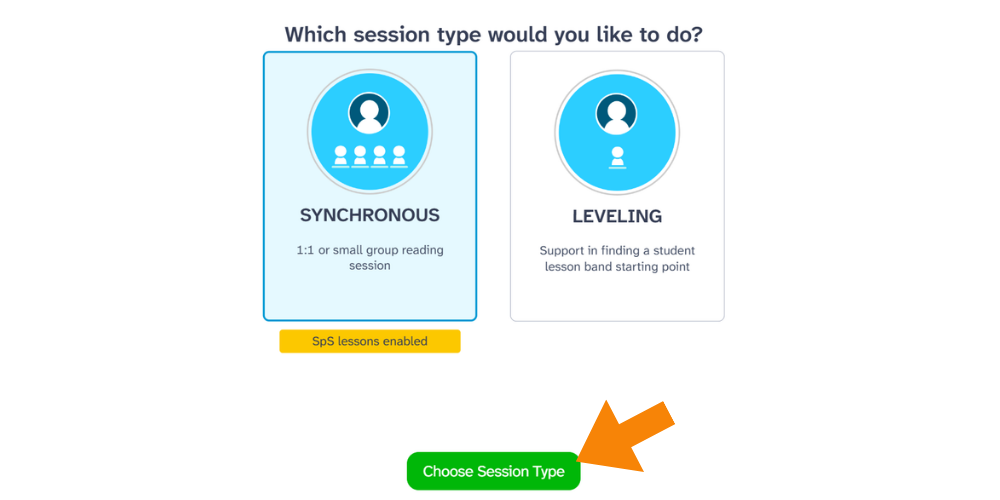
After clicking the Start Session Button, guides will select Synchronous to conduct a 1:1 or small group session. Choose “Synchronous Session.”
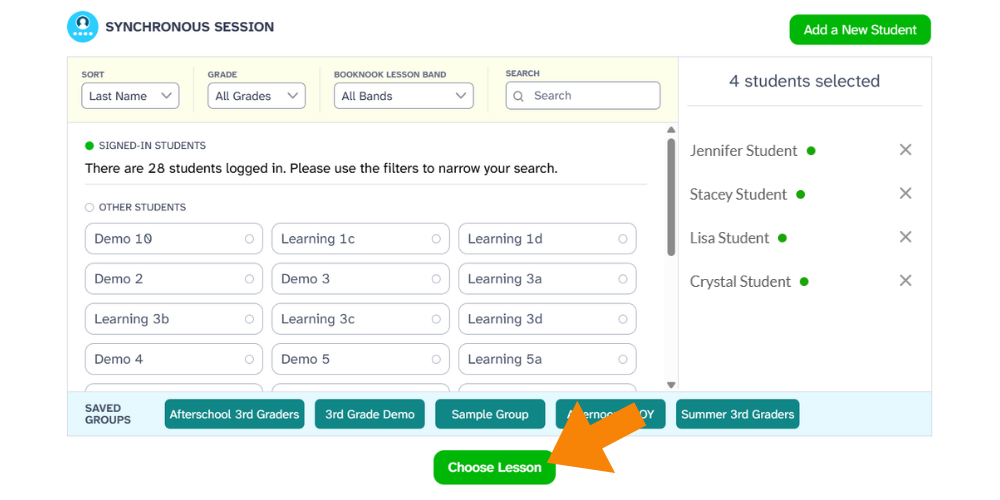
Select the students that you want to work with in the session. Students that are signed in will show a green dot next to their name. You’ll be given the option to save the group of students for future sessions. If you have already created a group, select the group along the button of the screen.
Once student selections are complete, click the “Choose Lesson” button to begin a lesson.
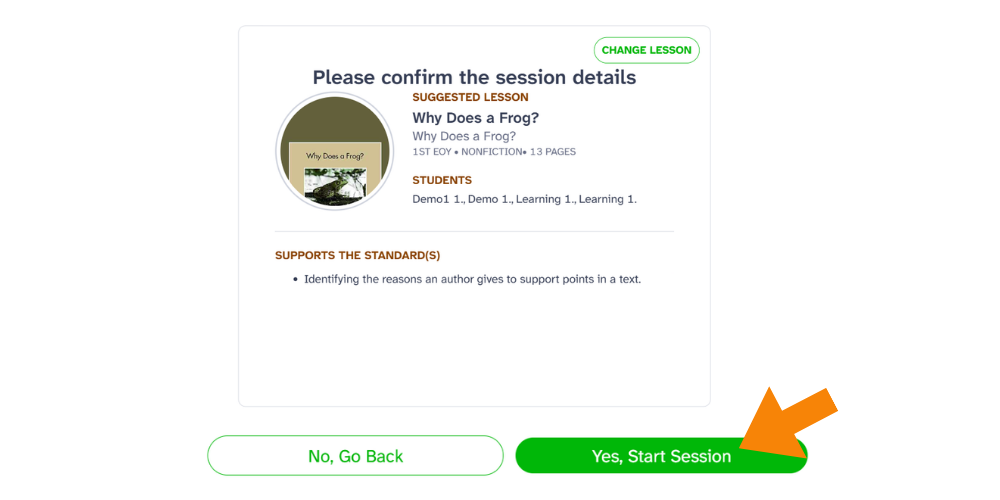
Session confirmation screen highlighting the “Yes, Start Session” button.
Check out the BookNook Platform – Reading Guide Checklists for Success. These checklists are designed to help you successfully launch BookNook reading sessions with students.