


How do students sign in to BookNook using a username?
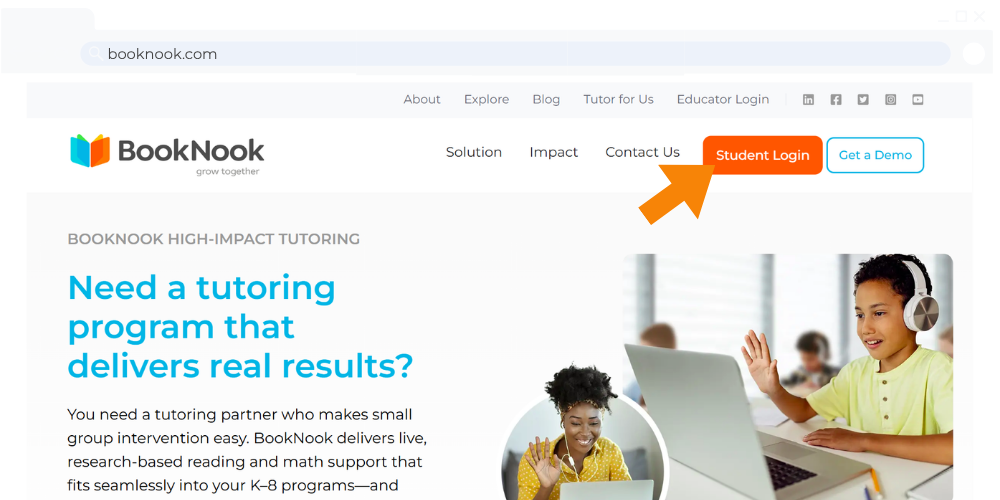
1. Students will go to booknook.com using a supported browser window, and click on the Student Login button.
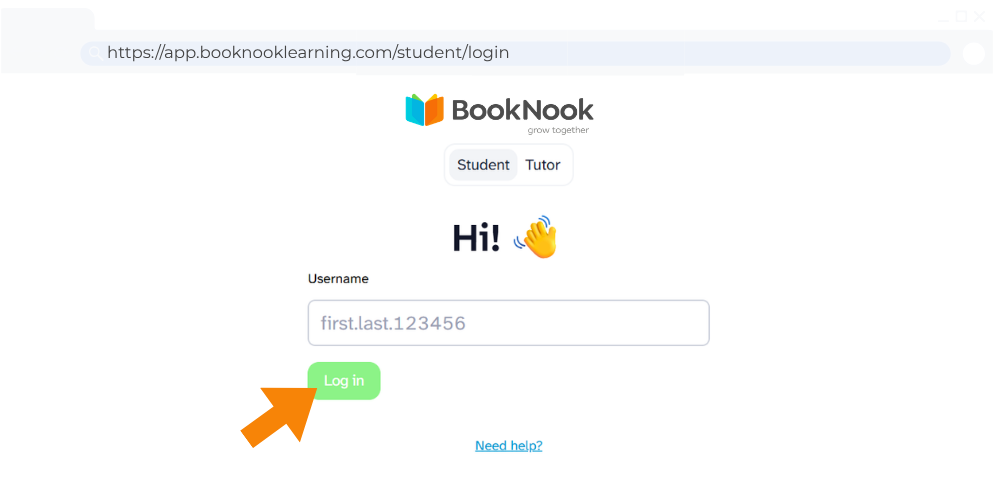
2. Students will type in their username and click the Log in button.
3. Once students are logged in, they will have the option to play a game until their tutor invites them into the session.
Tip: Bookmark or add a shortcut to the Student Login Page for future use: https://app.booknooklearning.com/student/login
Check out the BookNook – Student Login Resources for printable guides and videos to support students in logging in.