
How do I allow BookNook to access my device's microphone and camera?
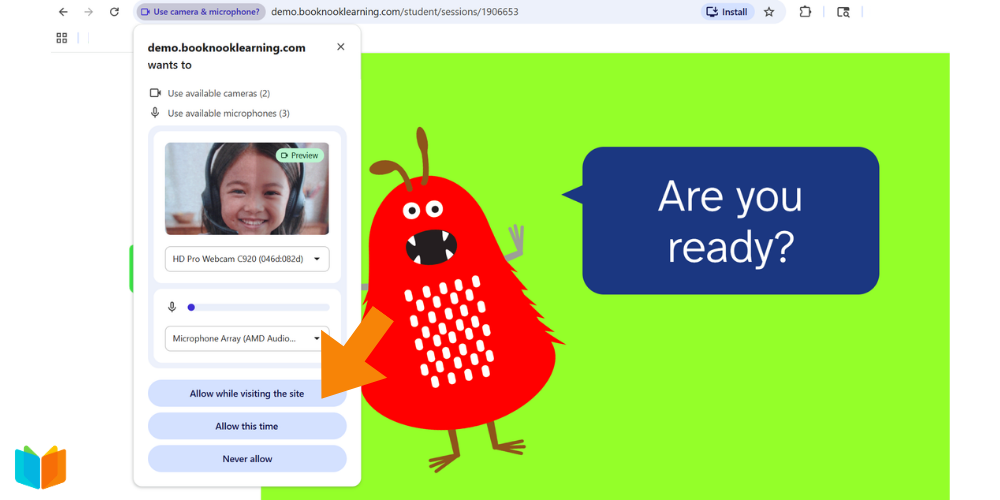
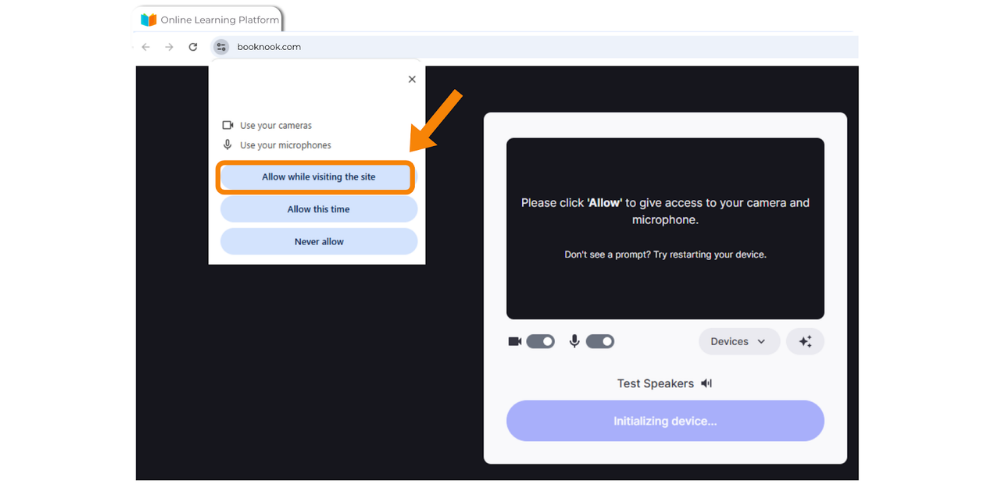
Upon joining the BookNook virtual classroom, students will be prompted to give video and microphone permissions. Students will need to select “Allow while visiting the site” in order for their tutor to see and hear them.
Permission requests may look different depending on the device/browser used and if students are joining a Reading Session vs a Math Session.
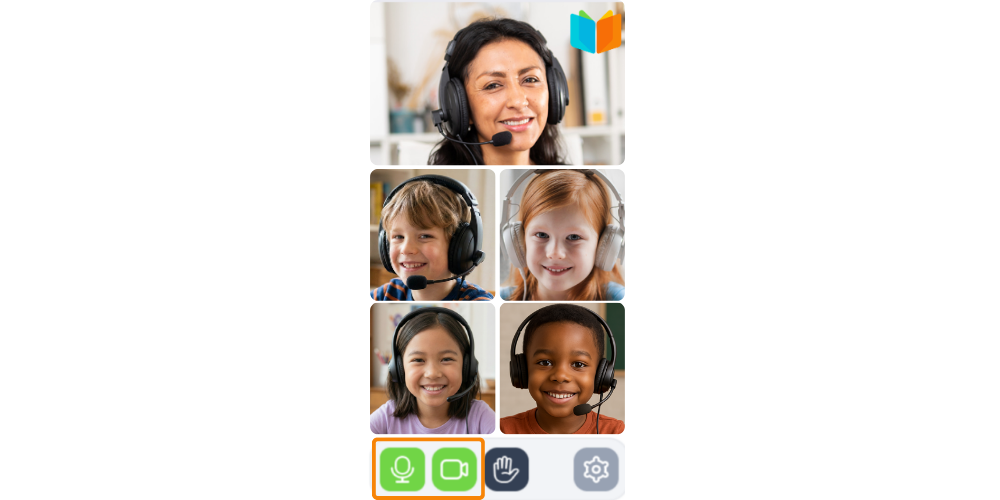
Reading Classroom
After giving permission, the microphone and camera icons in the Reading Classroom will turn green to show they are working.
Math Classroom
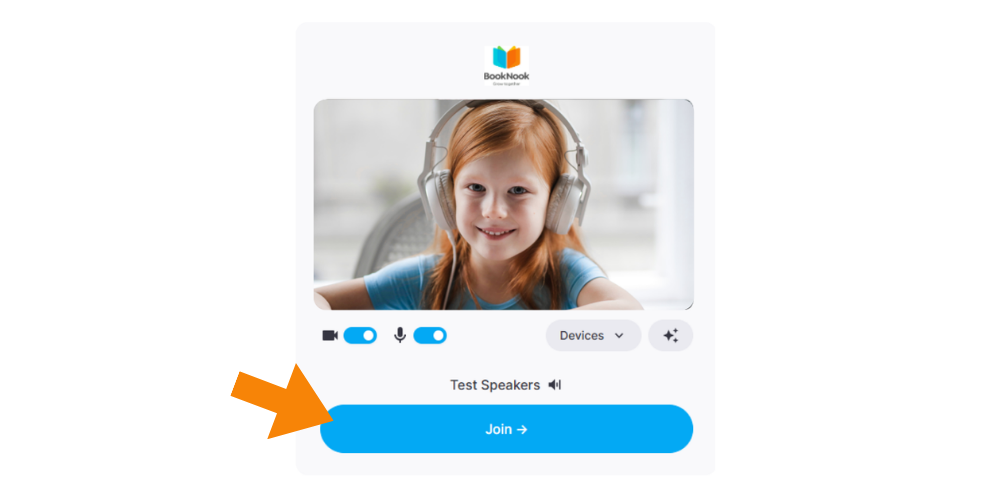
After giving permission, the camera and microphone icons are toggled on (the toggle turns blue) and the Join Button is activated. Students will need to click the blue Join Button to enter the Math Classroom.
Troubleshooting
“I can't see or hear my tutor”
If mic and/or video permissions are denied and students enter the classroom without giving a needed permission, mic and/or video will be disabled.
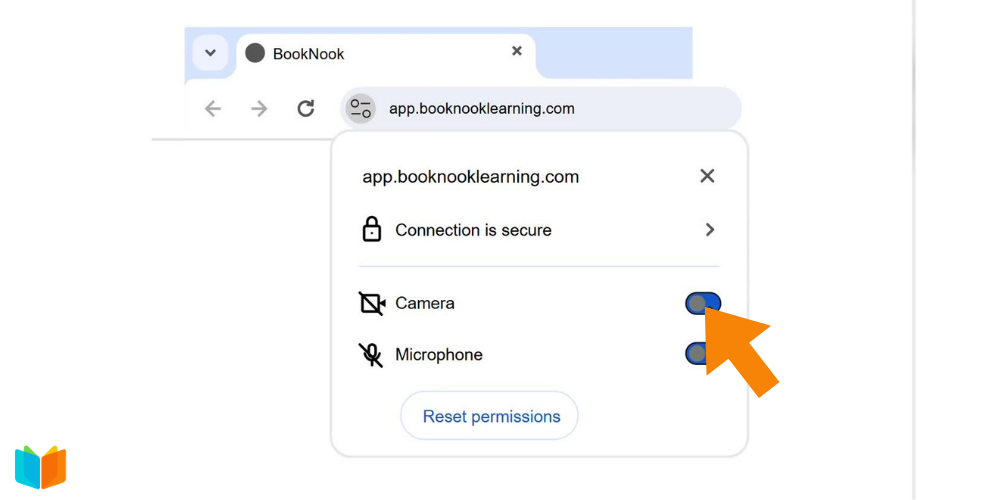
Follow these steps in Google Chrome:
- Click the settings icon next to the address bar at the top of the Chrome browser.
- Toggle on the switches for Camera and Microphone permissions.
Check out the BookNook Tutoring – Reading Classroom At a Glance and/or Math Classroom At a Glance for a printable overview of the virtual classroom space – including a guide on granting audio, microphone, and video permissions.