
How do I allow BookNook to access my device’s microphone and camera?
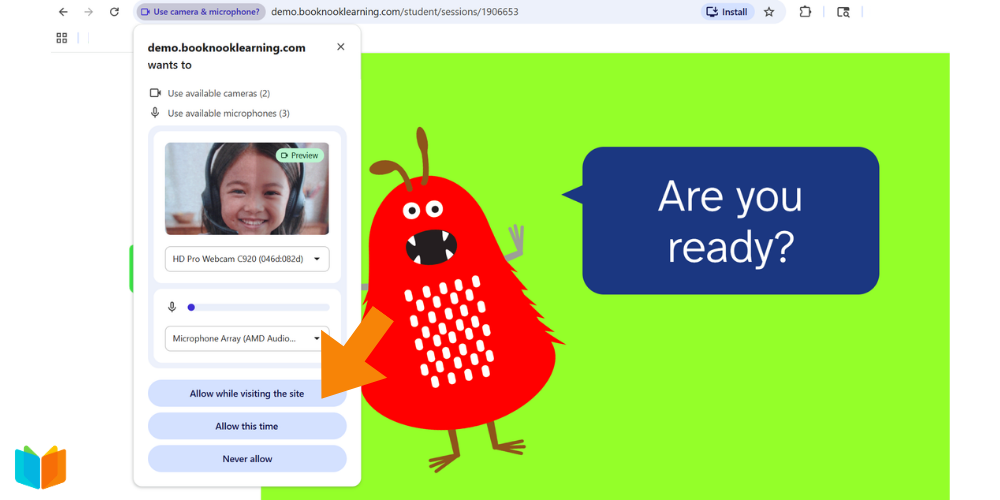
Upon joining the BookNook virtual classroom, students will be prompted to give video and microphone permissions. Students will need to select “Allow while visiting the site” in order for their tutor to see and hear them.
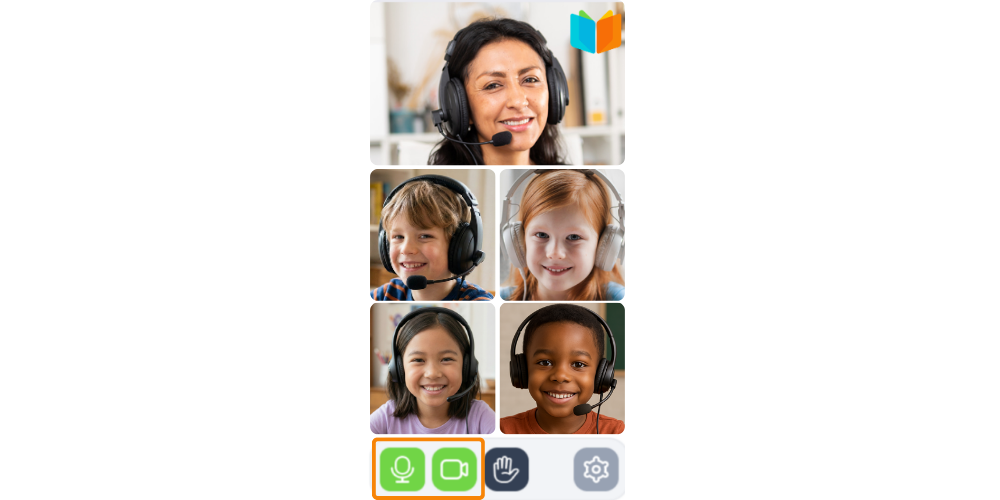
After giving permission, the microphone and camera icons in the Reading Classroom will turn green to show they are working.
Troubleshooting
“I can’t see or hear my tutor”
If mic and/or video permissions are denied and students enter the classroom without giving a needed permission, mic and/or video will be disabled.
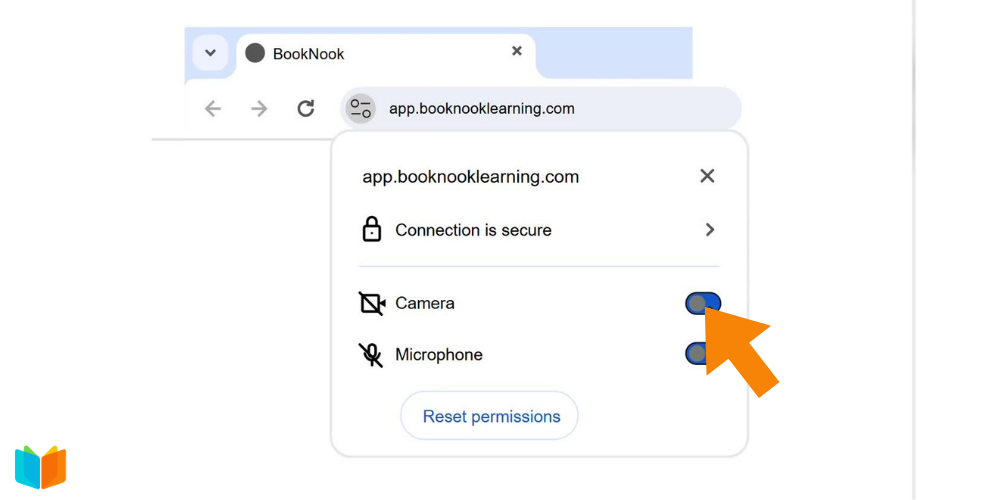
Follow these steps in Google Chrome:
- Click the settings icon next to the address bar at the top of the Chrome browser.
- Toggle on the switches for Camera and Microphone permissions.
If allowing access didn’t fix it
- Another app has the camera. Zoom, Teams, Meet, and FaceTime can hold onto the camera even after the window is closed. Quit them fully, then refresh.
- The computer is blocking the browser. On a Mac, go to System Settings > Privacy & Security > Camera and make sure your browser is turned on. Do the same under Microphone. On Windows, go to Settings > Privacy > Camera and turn on access for desktop apps.
- The wrong device is selected. If there’s a headset or external webcam, the browser may be pointed at something that isn’t plugged in.
- It’s a school device. Districts often lock these settings through device management, so the student and tutor can’t change them. This one has to go to the district’s IT team. Open a ticket and we’ll help route it.
- Nothing above worked. Restart the browser, then the device. If it’s still broken, open a ticket with the browser, the device type, and whether it’s school-managed.
Check out the BookNook Tutoring – Reading Classroom At a Glance and/or Math Classroom At a Glance for a printable overview of the virtual classroom space – including a guide on granting audio, microphone, and video permissions.