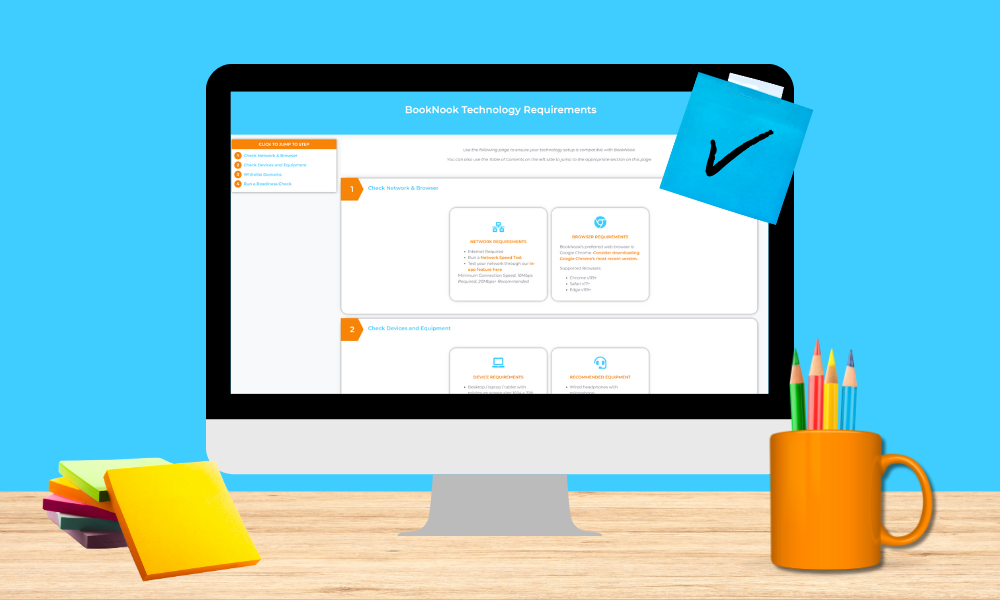
BookNook Technology Requirements
Setting up BookNook is quick, and getting it right means students can make the most of every tutoring session. Below is everything your district needs: a short overview for district leaders and the technical setup for your IT team.
- Last Updated
For District Leadership
A few basics set your students and tutors up for a smooth BookNook experience:
- A reliable internet connection: At least 10 Mbps download and upload, with 20 Mbps or more recommended.
- An up-to-date web browser: Chrome (preferred), Safari, and Edge. BookNook runs in the browser, not an installed app.
- A computer or tablet with working audio: Desktop, laptop, or tablet. Over-ear headphones with a built-in microphone are recommended for clearer sound.
- Firewall access: Your IT team needs to allow a short list of BookNook web addresses through the district firewall so the platform loads and works correctly.
- A quick readiness check: A short test on student devices before students start, to confirm everything works.
Before your first sessions
One step matters most, and it’s a quick, one-time task for your IT team: allowing BookNook’s web addresses through the district firewall (see Allow Listed Domains below). Handling it ahead of time sets your first session up to run smoothly, and it’s especially important for Virtual Tutoring, which uses a few additional domains and ports.
For IT Teams: Setup Checklist
Step 1: Network & Browser
Network Requirements
BookNook is a web-based application. Internet is required.
- Minimum Speed: 10 Mbps download/upload
- Recommended Speed: 20 Mbps+
Browser Requirements
BookNook’s preferred web browser is Google Chrome.
Supported Browsers:
- Chrome v151+
- Safari v26.6+
- Edge v1151+
Step 2: Devices & Equipment
Device Requirements
- Device: Desktop, laptop, or tablet with internet access, updated web browser, working audio (in and out), and camera
- Minimum screen size: 1024 x 768
- Recommended: over-ear headphones with a built-in mic (on the headset, not the wire) and a reinforced jack. Schools have found success with models such as:
Step 3: Allow listed domains
Allow by domain, not by IP address.
BookNook runs on cloud infrastructure, so our services don’t sit behind fixed IPs; the addresses these domains resolve to change automatically. Domain-based rules keep working through those changes, while IP-based rules will eventually break. If your firewall filters by IP, please allow-list these hostnames instead. We don’t publish a static IP list, because there isn’t one to maintain. The one exception is Amazon Chime, which AWS serves from a published, stable IP block (listed under Virtual Tutoring).
Required (all customers)
Here’s what to allow. Required domains are essential; recommended ones are optional but help us support your students and tutors faster. Use whatever wildcard character your system needs (shown here as *).
BookNook
- *booknook.com
- *booknooklearning.com
Prefer not to wildcard BookNook? Use these specific domains instead (may change in future): api.booknooklearning.com, app.booknooklearning.com, assets.booknooklearning.com, booknook.com
Session Sign-in, storage, accessibility
Firebase (session data, sign-in, and storage):
- booknook-prod.firebaseio.com
- firebasestorage.googleapis.com
- www.googleapis.com
Google Fonts:
- fonts.googleapis.com
- fonts.gstatic.com
Feature enablement: cdn.growthbook.io
Required for Virtual Tutoring (Reading and Math)
Virtual Tutoring - Audio/Video
These URLs must be whitelisted by our virtual tutoring customers for both math and reading:
- *.chime.aws
- *.amazonaws.com
Additional recommended whitelisting:
- You will also need to allow traffic to our TURN servers, on TCP and UDP ports 443 & 3478.
- Subnets for IPv4 and IPv6: 99.77.128.0/18 and 2600:f0f0:4100::/40
Recommended
Diagnostics, support, and usage analytics
Data is never sold or shared (see the Privacy Policy).
- edge.fullstory.com
- rs.fullstory.com
When you’re ready, run a quick readiness check on student devices to confirm everything’s working before the first session:
Each run records the domains and IP addresses it successfully reached and exports a CSV, JSON, or firewall-rule template, so teams always have the current set. The template leads with domain rules and includes IP rules as a fallback.